Proposer's User Guide
The proposals for the Nancy Grace Roman Space Telescope are submitted from the Roman Telescope Proposal System (RTPS). This guide presents general information on how to submit proposals using RTPS.
Roman uses a one-phase proposal submission, in which the General Investigator submits the science justification for the investigation using the templates provided. If new observations are requested, the proposer specifies the observation parameters via an .apt file generated using the Astronomer's Proposal Tool. The proposals must be written following dual anonymous peer review (DAPR, the links will be activated once the Call for Proposals is released) guidelines, where identities of the proposers are not revealed to the proposal reviewers before the proposal ranking is completed.
The following RTPS Proposer's User Guide provides the manual for using RPTS, which can be found at
Creating an Account in RTPS
After loading the RTPS page for the first time, a user needs to create an account. To do that
- click on "Sign Up"
- fill in First name, Last name, Home Institution, email address and create a password (note that you need a minimum of six characters and need to type in this password twice). Special characters are supported.
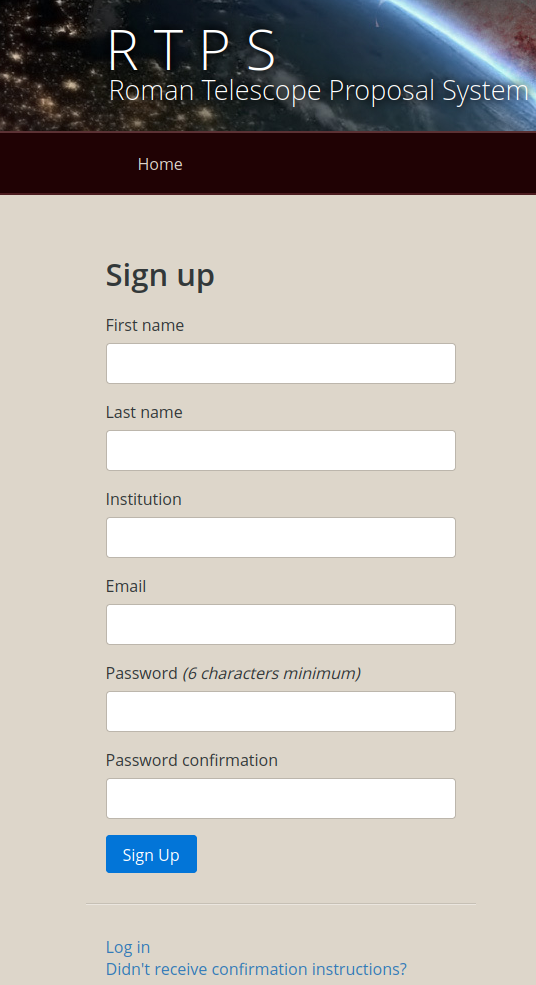
Figure 1: RTPS Sign-up page.
The system will send a confirmation email to the provided email address. If you do not get the confirmation email, you can try to have it sent again by clicking on "Didn't receive confirmation instructions?" and then giving your email address again.
After that the system will respond with a message on the top pane saying "A message with a confirmation link has been sent to your email address. Please follow the link to activate your account."
In your email tool, open the message with a confirmation link, The message should be from no-reply@ipac.caltech.edu. The email will have a link called "Confirm my account." Click on that link to confirm your RTPS account.
Signing into RTPS and Changing Password
After confirming your new RTPS account, you should be automatically directed to the RTPS login page in your browser. Now, give your email address that you just registered in RTPS and your password and click on "Log in," and you should arrive at the RTPS home page. Next time you sign in to RTPS, just go to
https://rtps-roman.ipac.caltech.edu/
and type your email address and your password in their fields and click on the blue "Sign in" button.
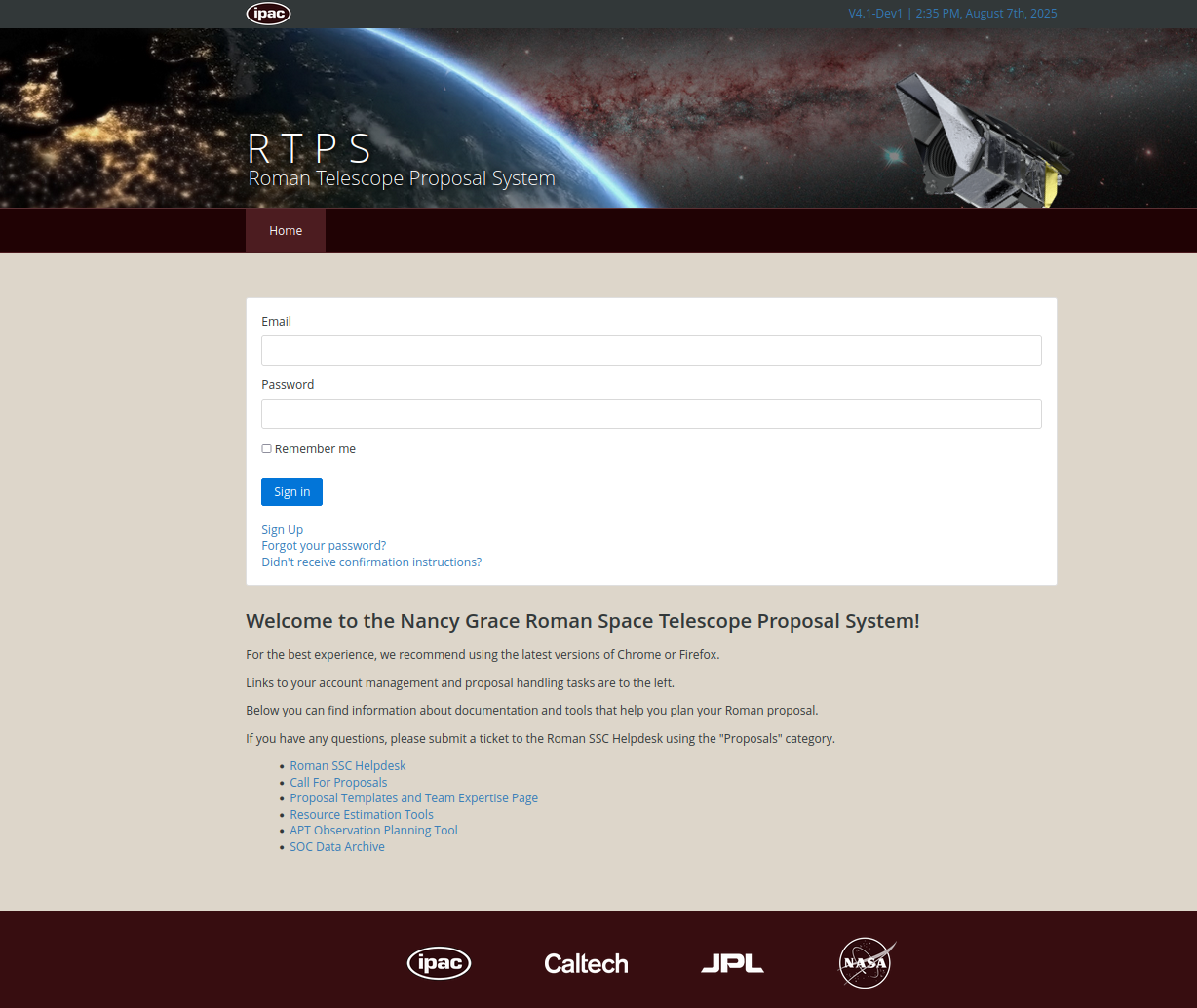
Figure 2: RTPS login page.
There is also a link to change your password. for example, in the case you forgot your password (the "Forgot your password?" link). In that case, type in your email address, press "Send me reset password instructions" and check your email inbox for an email that directs you to change your password.
The email to change your password will have a link to "Change my password" and clicking on that will direct you to a web page in your browser where you can type in your new password (in two separate fields). Clicking on "Change my password" will log you into RTPS with your new password.
RTPS Home Page
The RTPS Home Page and all the pages under RTPS will have a top pane with six links, "Home", "New Proposal", "New DR", "My Proposals", "Settings", and "Sign Out."
- Clicking the "Home" button will always bring you back to the home page.
- Clicking "New Proposal" will take you to a page where you can specify and submit a new Roman Space Telescope proposal.
- Clicking on "New DR" will take you to a page where you can specify and submit a Discretionary Research proposal.
- Clicking on "My Proposals" will take you to a page where you can see and edit and resubmit your previously submitted proposals.
- Clicking on "Settings" takes you to a page where you can change your name, email, and institution information, as well as select a time zone, and change your password.
- Clicking on "Sign Out" will log you out from the RTPS website.
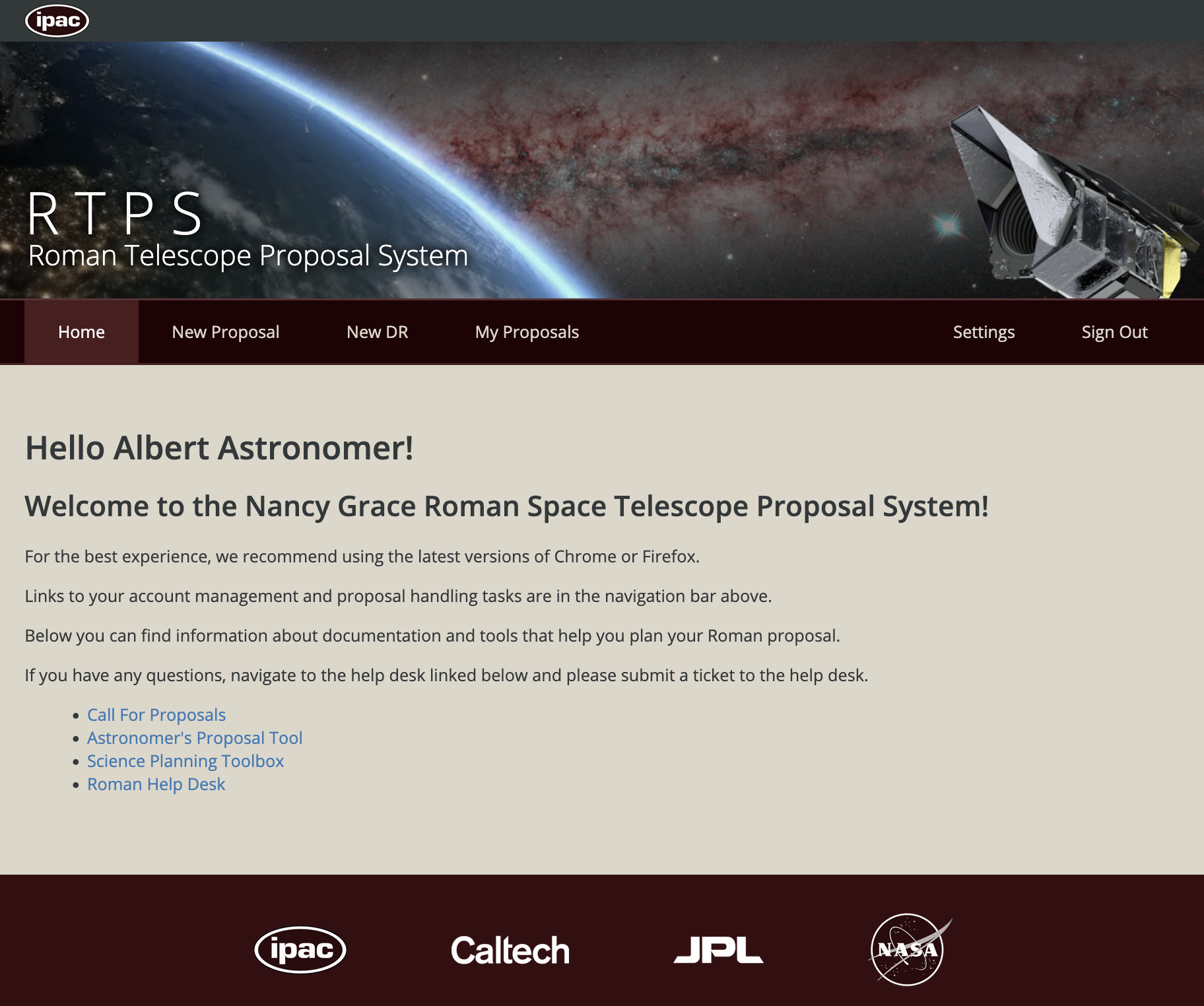
Figure 3: The RTPS home page after logging in. It includes useful links for proposal planning and a link to start a new proposal in the upper pane ("New Proposal").
On the home page you will also see a welcome message and some basic instructions for using RTPS for proposing to Roman. There are also links to the Roman Help Desk where you can submit questions about proposal preparation, among other things, and documentation that helps you with proposal planning.
New Proposal Page
Please note that there is a six-hour time limit to fill out the new proposal. If you plan to work on it longer, please save your edits by using the "Save JSON" button on the top of the page and save your work to a JSON file. To continue editing, you have to upload the JSON file by clicking the "Upload JSON" button at the top of the New Proposal page. Please note that the attachments (pdf files and the .apt file) are not saved with the JSON file, so you will have to upload them manually to continue working on the proposal.

Figure 4: The top portion of the RTPS page showing the inputs fields for a new proposal.
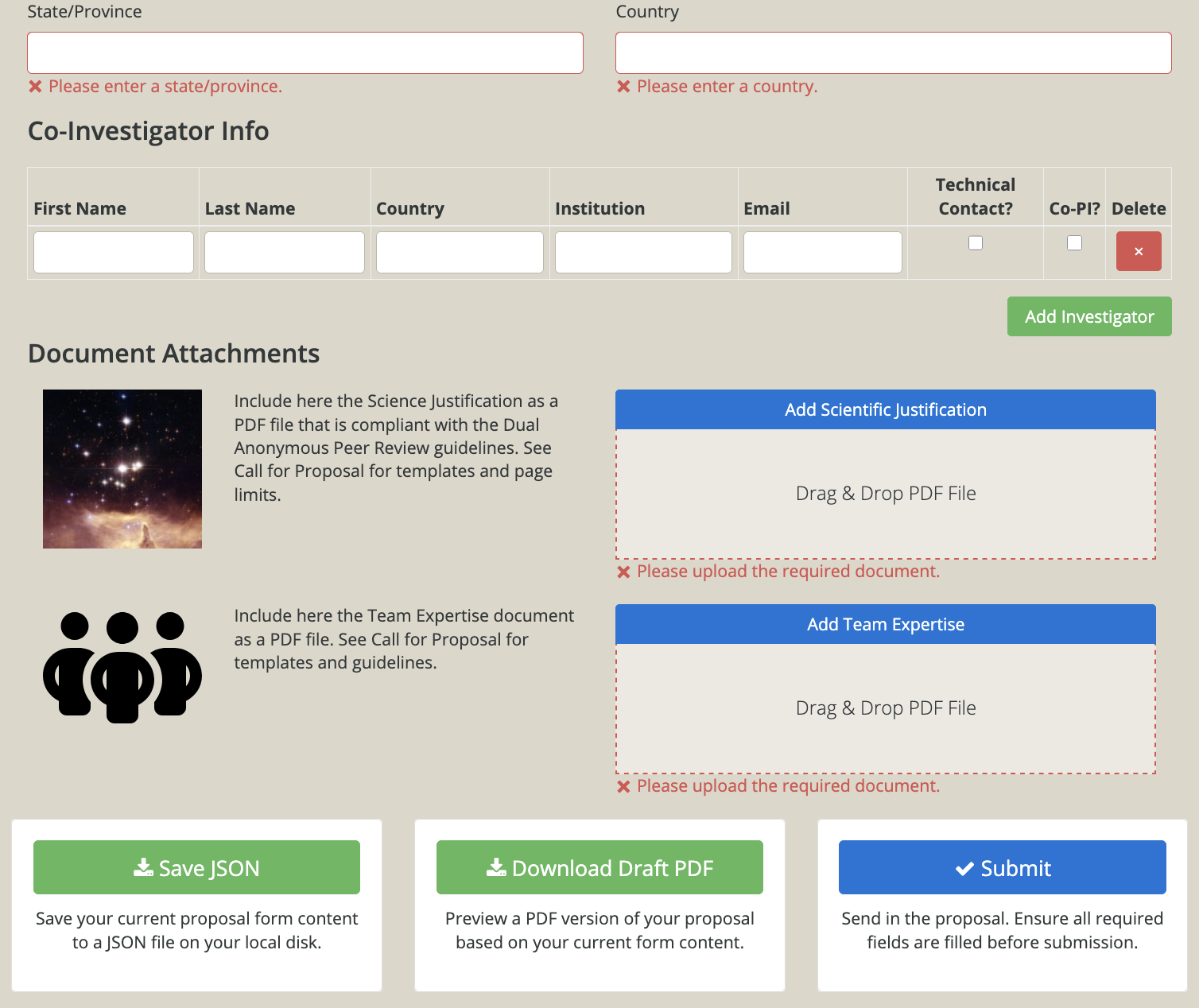
Figure 5: The new proposal page, bottom part, showing all the fields that need to be filled in before proposal submission.
The "Clear Form" button near the top of the New Proposal page can be used to start specifying the proposal from scratch (it deletes the existing information in all fields).
For a new proposal:
- first you need to give the proposal a title. This can be any ASCII format string of 200 characters or less. Do not use the carriage return (line change) but type your title on one line. There is a character counter just above the title box on the right side.
- if you plan to ask for new Roman observations in your proposal, then please check the box "This proposal contains new observations." Note that you can ask for both archival research support and new observations in your proposal.
- select the science category from the pulldown menu. Select the science category that you think is closest to the main science topic that you propose to research with Roman data.
- select the "Category" of your proposal. The differences between these categories are explained in the Roman Call for Proposals.
- if you checked the "new observations" box, then the "Hours" field is available as well. Please specify the number of hours you are requesting, matching the total number of hours calculated by the APT tool that specifies the details of your observations.
- type in plain ASCII characters an abstract for your proposed Roman science. The maximum character limit is 2000 characters. There is a character counter on the top of the abstract field on the right.
- if you plan to ask for new observations, fill out the "Summary of Observations" field. There is a 2000 character limit with a character counter available on the upper right. Please see the Call for Proposals for exactly what should be included here, but in general you will describe the type of observations requested, sky coverage, filters and constraints where relevant, etc.
- fill out information about the Principal Investigator (PI). Please fill out all the required fields:
- First Name
- Last Name
- Email address
- Institution (Start typing the name of your institution and RTPS should present you choices. Select the correct one. If your institution is not listed, then type the whole name of your institution. Select/type in only your main affiliation).
- State [only if from United States or Canada] (Start typing the name of your state or province name and RTPS should present you choices. Select the correct one. If the PI's state/province is not listed, then type the whole name of your state/province. If the PI is not from US or Canada, please type "N/A", without quotation marks, into this field).
- Country (Start typing the name of your country and RTPS should present you choices. Select the correct one. If your country is not listed, then type the whole name of your country).
This information will be used for communications and also for extracting statistics of the proposers. In the Institution field you may start typing the name of your institution and RTPS will suggest the correct institution name if it is in our pre-filled list. If it is not in our list, please type the complete official name of your institution in this field. Similarly for the state/province and country fields, please start typing the name and RTPS will suggest correct states or countries.
- fill in information about Co-Investigators (Co-Is), if any. Please provide the basic information:
- First Name
- Last Name
- Country (Start typing the name of your country and RTPS should present you choices. Select the correct one. If your country is not listed, then type the whole name of your country).
- Institution (Start typing the name of your institution and RTPS should present you choices. Select the correct one. If your institution is not listed, then type the whole name of your institution. Select/type in only your main affiliation).
- Email address.
- check the "Technical Contact" box if you would like the Co-I to be a technical contact for the proposal.
- check the "Co-Principal Investigator" box if you would like the Co-I to be a Co-Principal Investigator (Co-PI) for the proposal.
The Principal Investigator will automatically be designated as a technical contact (to whom any technical questions about the execution of the program should be sent to), but Co-PIs and Co-Is may be designated as additional technical contacts by checking the "Technical Contact?" box. Note that you can add/delete more than one Co-I/Co-PI by using the green "Add Investigator" and the red "Delete" buttons.
Attachments
The following two attachments will always be required for a new proposal:
- Scientific Justification. Please see the Call for Proposals for the required contents of the Scientific Justification. There are LaTex and Word templates available from the link on the RTPS home page that must be used for the scientific justification document (compiled or saved to PDF format). Click on the words "Add Scientific Justification" to upload and attach the Scientific Justification PDF document.
- Team Expertise document. There are templates available from the link on the RTPS home page that must be used for this document as well. Click on the words "Add Team Expertise and Resources" to upload this attachment.
- An APT file (*.apt; only if you checked the "This proposal contains new observations" box). To create this file, download the Astronomer's Proposal Tool (APT) software and use that to create and validate the APT file. Please click on the words "Add APT Observation Parameters" to upload this attachment.
All the attachments can also be cleared at this stage and a new attachment selected for upload instead. All the attachments can either be selected from your computer disk by clicking the text on the blue background, or dragged and dropped into their corresponding boxes.
Once all the required fields have been filled in, you may save your current inputs by clicking on the green "Save Proposal" button at the bottom of the New Proposal page. This will pop up a window in which you can specify the directory where the .json file containing your inputs are saved, together with the name for these inputs. You should click Save when ready to save the inputs to the JSON file.
If you are not ready to submit the proposal, you may stop here and come back later, and use the "Upload proposal" button on the New Proposal page and navigate to the directory and JSON file that contains your draft inputs for the new proposal, and then continue editing these inputs. Please note that the Upload button does not load the attachments, but you have to add them again manually.
Before submitting the proposal, you may want to see what your submitted proposal PDF would look like as seen by the proposal reviewers. To do that, you should press the green background "Download Draft PDF" button at the bottom of the "New Proposal" page. It may take a few moments before the pdf file pops up.
Submitting a Proposal
Once you are ready to submit your proposal, please click on the "Submit" button at the bottom of the "New Proposal" page. It will bring up a new window asking if you would like to save the proposal before submitting it. If you click on "Save and Submit," it will again ask where to save the latest version of the proposal .json file (you can select and specify the directory and file name). After saving the .json file, you will be redirected to a proposal confirmation page containing a message saying "Congratulations! Your proposal has been successfully submitted! The upper left corner of the RTPS web page should also say "Successfully submitted proposal."
You should also receive an email at this point at the email address that you used to log into RTPS and submit the proposal. The Subject line should say "RTPS Proposal Submitted - Proposal ID: xxxxx," where the xxxxx is the proposal id number. The message will also state the submitted proposal id number.
Alternatively, if you do not want to save your proposal but just submit it, you may click on the "Submit" button. The confirmation messages will be the same as detailed above.
The "Click here to view your proposal" on your proposal button on the successful submission page gives you a chance to edit your inputs and then resubmit the proposal (it will overwrite the previous entry of your proposal). After resubmitting your proposal, you will come back to the same confirmation page, and you can make further changes to your proposal by proceeding as before, and resubmit it again and continue resubmissions as many times as you want.
If you go away from the proposal page and want to come back later to resubmit it, you should use the "My Proposals" link on the RTPS home page.
- Go to the "Edit" link for the proposal you want to modify, and make the changes.
- Resubmit it by pressing the "Resubmit" button.
Note that every time you resubmit a proposal, you should get an email with a Subject line "RTPS Proposal Resubmission Received." The body of the message gives the id number of the submitted proposal and informs the submitter about the ordinal number of the resubmission (e.g., This is your 1st resubmission.") Also, on the confirmation page that you will see after you resubmitted, you should see a message "Successfully saved the proposal."

Figure 6: RTPS Page showing a successful submission. Note the upper left corner that spells out that the submission was successful.
Again, if you instead of "Save and Submit" selected to press the "Submit" button, you will be redirected to the proposal confirmation page and get the message "Congratulations! Your proposal has been successfully submitted!" and the button "Click here to view your proposal" and you may proceed as above after that (including resubmission).
New DR Page
Filling out a new Discretionary Proposal (DR) page works a lot like filling out a new regular Roman proposal page, which is described above. The "This proposal contains new observations" box is automatically checked. Otherwise please follow the same steps as above for filling out a new proposal. Please check the DR guidelines from the Roman Proposal Call documentation in RDox.
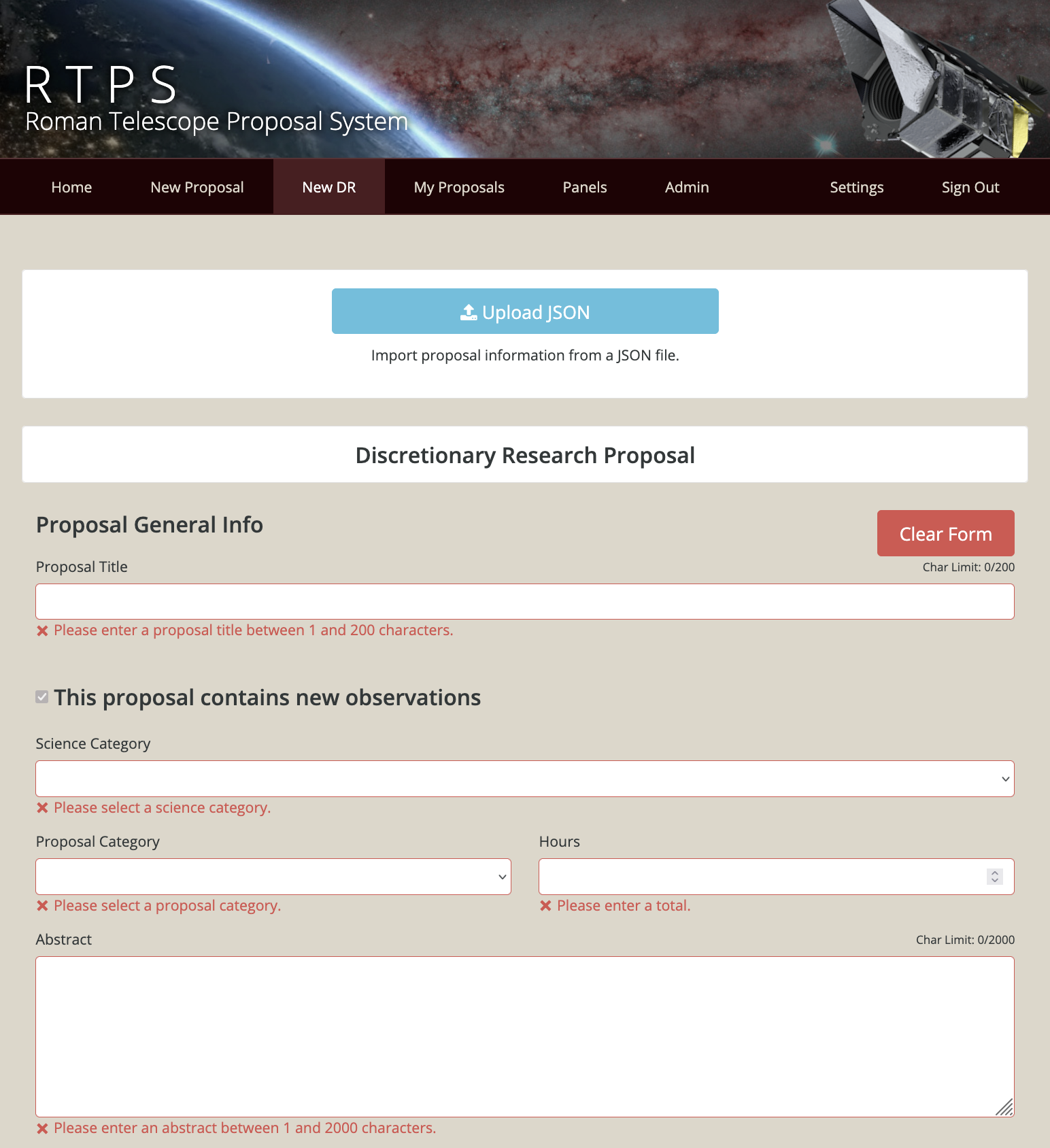
Figure 7: The new DR proposal page, top part, showing all the fields that need to be filled in before proposal submission.
My Proposal Page
The "My Proposals" page lists the proposals for the current Cycle that you have submitted. The listing includes the Proposal Id, Title, Type, and the Last Updated Date, and buttons to edit (and possibly resubmit) the submitted proposal and to download the submitted proposal.
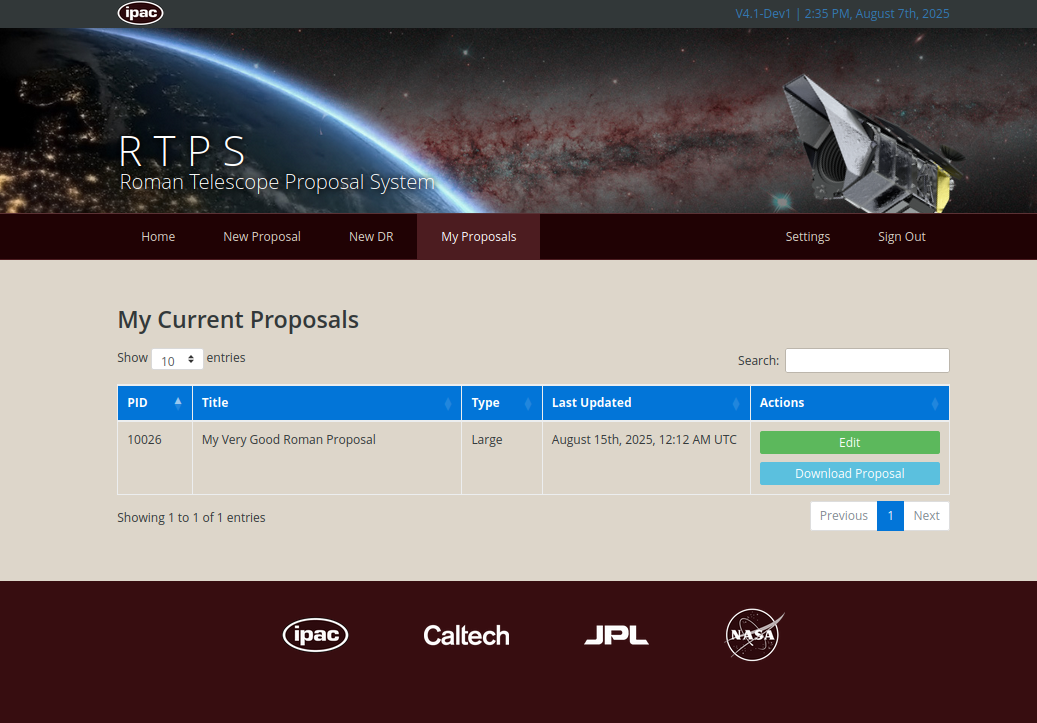
Figure 8: My Proposals page after one proposal has been submitted. It included information about the submitted proposal, e.g., the Proposal ID, the proposal title and the type of the proposal, and buttons to edit the submitted proposal (where you can resubmit it after editing) and to download the proposal to the user's computer disk.
To edit the submitted proposal, click on "Edit" on the line corresponding to the proposal that you want to edit. A view similar to the "New Proposal" will come up and you can edit any field or attachment you want. You may also use the "Save Proposal" and "Load Proposal" buttons as specified in the New Proposal instructions above to save the currently displayed proposal parameters, apart from the attachments, to a .json file in a directory and filename of your choosing, and then load them again into the resubmission editor page. Remember that if you want to change any of the attachments, you can click on the "Replace [ATTACHMENT]" button or you can clear the attachment you want to change and then attach the new attachment.
After resubmission, you will see a message "Successfully saved the proposal" at the top of the page and that means that your new version of the proposal replaced the earlier submission. You should also get a message in your email with a Subject line "RTPS Proposal Resubmission Received - Proposal ID xxxxx." The body of the message again gives the proposal id number and the ordinal number of the resubmission.
If you press the "Download Proposal" button on the line corresponding to the proposal you want to download, you will get a combined pdf file containing the proposal cover information (information about the proposed project, personnel, etc.). You can save this file in a directory and filename of your choosing.